How to Watch IPTV Canada with Android TV Box
Watch IPTV Canada with Android TV Box (Nvidia Shield, Mi Box, and more) 1: Connect and Set Up Your Android TV Box 2: Open the

Watch IPTV Canada with Android TV Box (Nvidia Shield, Mi Box, and more) 1: Connect and Set Up Your Android TV Box 2: Open the
Step 1: Open the Google Play Store on Android (Phone or Tablet) Step 2: Download the App in Android (Phone or Tablet) Step 3: Accept
What You’ll Need 1st Option: Using VLC Media Player (Best for M3U Playlist) 1: Download and Install VLC 2: Open VLC and Load Your IPTV
What You’ll Need Step-by-Step Guide 1: Open the App Store 2: Download an IPTV App 3: Open the IPTV App 4: Enter Your IPTV Subscription
What You Need Step-by-Step Guide 1: Turn On Apple TV and Open App Store 2: Search for IPTV App 3: Launch the App 4: Enter
Using IPTV Smarters on macOS (via Android Emulator) Step 1: Install BlueStacks on macOS Devices Step 2: Install IPTV Smarters App Step 3: Enter IPTV
1: Prepare Your FireStick 2: Install the Downloader App 3: Download IPTV App 4: Open IPTV Smarters Pro 5: Enter IPTV Subscription Details 6: Enjoy
First enable Developer options on your Google TV 1. Click gear icon to enter Settings panel. 2. Click System. 3. Choose About. 4. Hover over
Step 1: Ensure Your Smart TV Is Connected to the Internet Instructions: Step 2: Search for an IPTV App Instructions: Step 3: Launch the IPTV
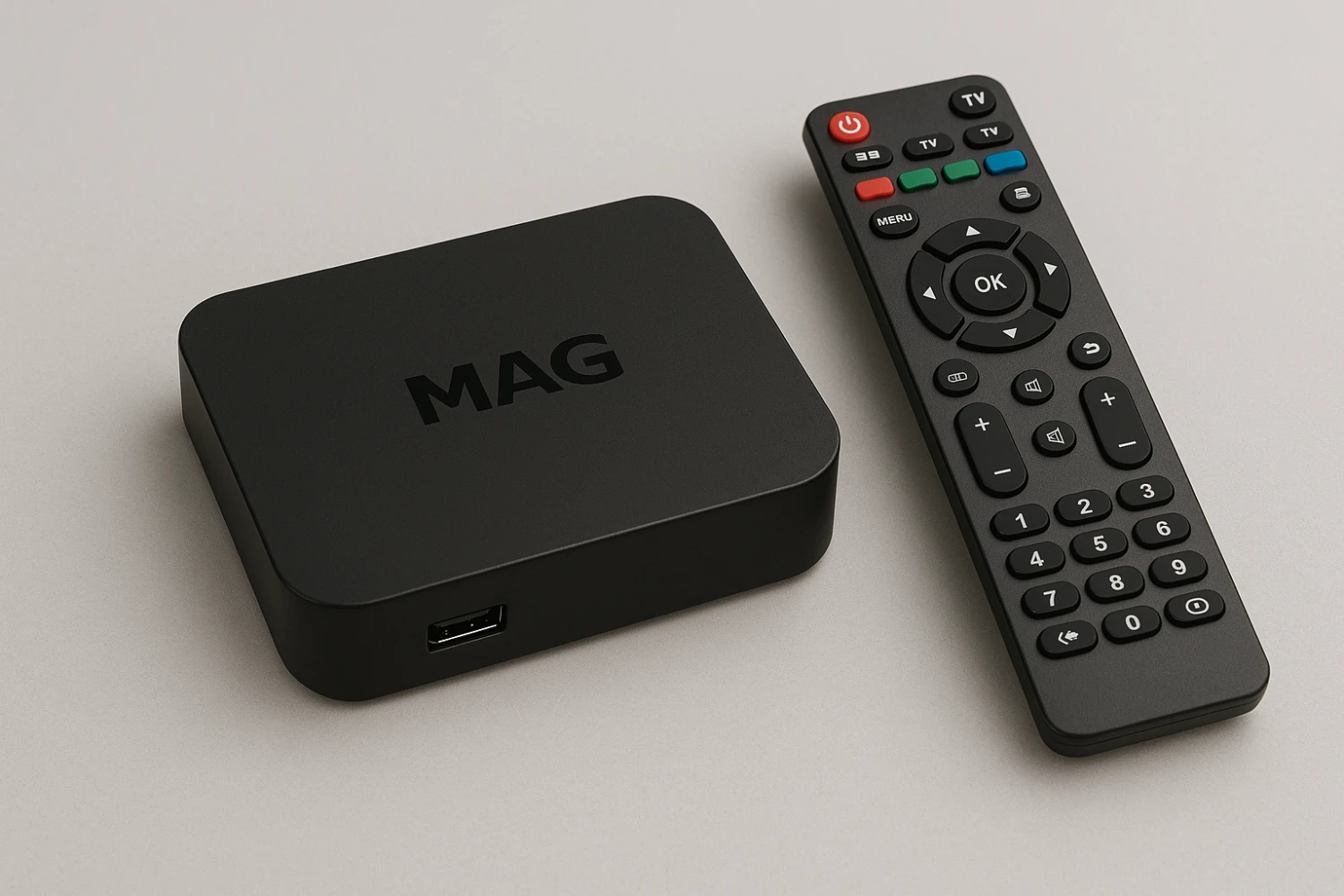
This guide will show you how to connect your MAG boxes to our IPTV service in just a few easy steps. Step 1: Plug In
