
To get the most out of your IPTV Canada subscription, enabling the EPG (Electronic Program Guide) and subtitles enhances your viewing experience. This guide walks you through setting up both features across popular IPTV apps like IPTV Smarters, TiviMate, XCIPTV, and others.
1: What You Need
Before you begin, make sure you have:
- A working IPTV subscription (Xtream Codes or M3U login)
- An IPTV app that supports EPG and subtitle features
- A valid EPG URL (provided by your IPTV provider, if using M3U)
2: Enable EPG with Xtream Codes Login
If you’re using Xtream Codes login (portal + username + password):
- Open your IPTV app (e.g., IPTV Smarters, TiviMate, XCIPTV)
- Log in with your Xtream Codes credentials
- EPG will automatically load (if supported by your provider)
- Navigate to Live TV > Guide / EPG
- Wait a few seconds — now/next programs should appear under channels
If EPG is empty, your provider may not include it or you need to refresh content.
3: Add an EPG URL Manually (For M3U Login)
If you’re using an M3U Playlist, you may need to add the EPG URL manually:
- Go to your IPTV app’s Settings
- Look for EPG URL or XMLTV Link
- Paste the EPG link (usually ends in
.xmlor.gz) - Save and refresh or reload your app
In TiviMate:
- Settings > TV Guide > EPG Sources > Add Source
- Choose “External URL” and paste the link
- Assign it to your playlist and update EPG
4: Enable Subtitles During Playback
- Start watching a movie or TV show
- Press the Subtitles (CC) or settings icon in the playback window
- If available, you’ll see a list of subtitle languages
- Select your preferred language to enable subtitles
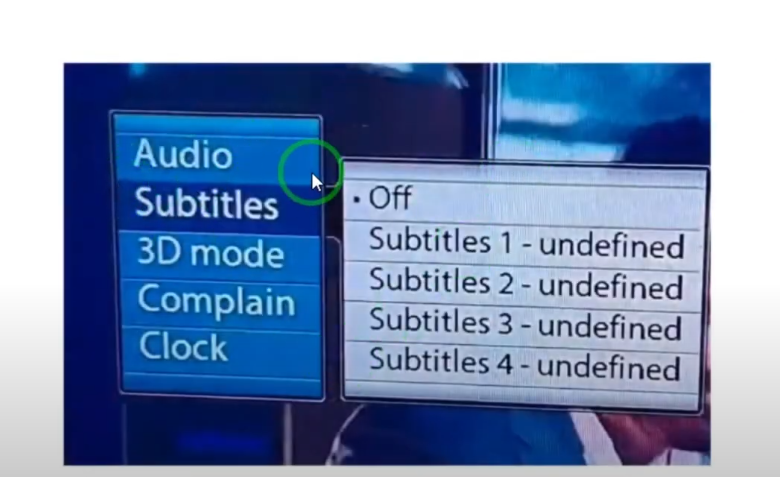
If there are no subtitle options visible, that content might not include embedded subtitles.
5: Use External Subtitles (Optional)
For apps that support external subtitle files:
- Download a .srt or .vtt subtitle file for the video
- Save it in the same folder as the video (if local file)
- During playback, choose “Load Subtitle” and select the file manually
Apps like TiviMate, GSE IPTV, and VLC Player support this option.
Tips for Better Experience
- Always use Xtream login when possible — EPG loads automatically
- If EPG doesn’t show, try clearing cache or updating the playlist
- Some providers offer EPG links separately — contact support if needed
- Subtitles work best on VOD (movies/series), not always available on live channels
- Keep your IPTV app updated to avoid EPG/subtitle bugs
You’ve now successfully enabled EPG and subtitles on your IPTV app. With these features active, you can browse live programming more easily and enjoy content in your preferred language or with captions when needed.




