
Steps to Add an M3U Playlist in Emby
1. Ensure You Have Emby Premiere
Live TV (including M3U tuner support) requires an active Emby Premiere subscription
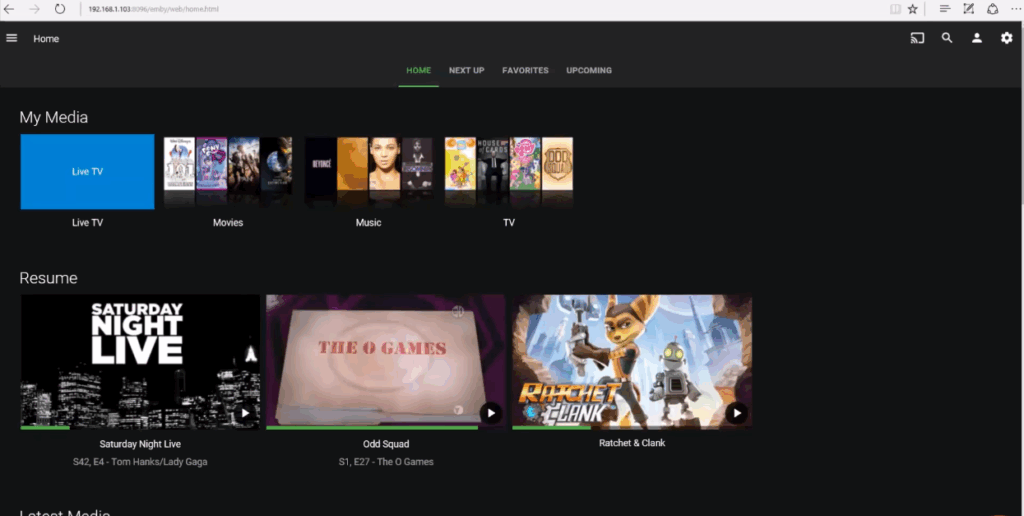
2. Open the Emby Server Dashboard
Go to Live TV in the left-hand menu.
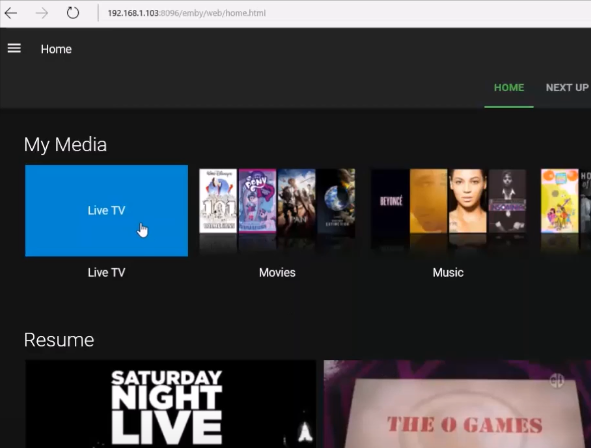
3. Add a Tuner Device
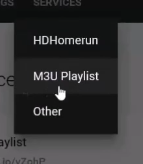
Click the “Add” button (or “Add TV Source” / “+”) and choose M3U tuner .
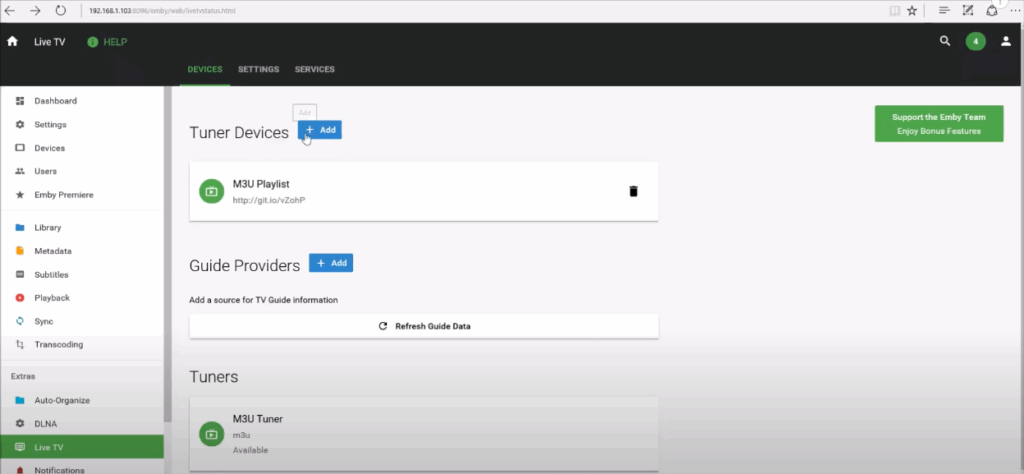
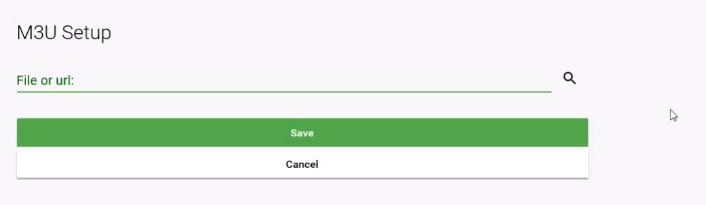
4. Enter the M3U Playlist URL
On the configuration screen:
- Select M3U or M3U tuner
- Paste your M3U URL (or point to a local M3U file)
- Leave other fields at defaults (e.g., max connections)
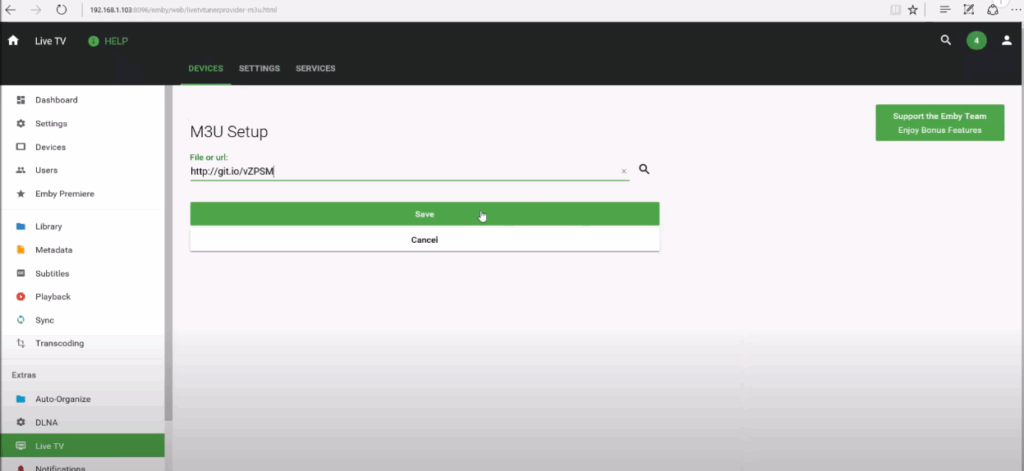
5. Save & Let Emby Load Channels
Click Save. Emby will fetch the M3U and list available channels.
6. (Optional) Add Guide Data
To get EPG (programme guide), go back to Live TV settings and add a guide source:
- Choose built-in Emby Guide data (for US/UK/Canada)
- Or provide an XMLTV URL
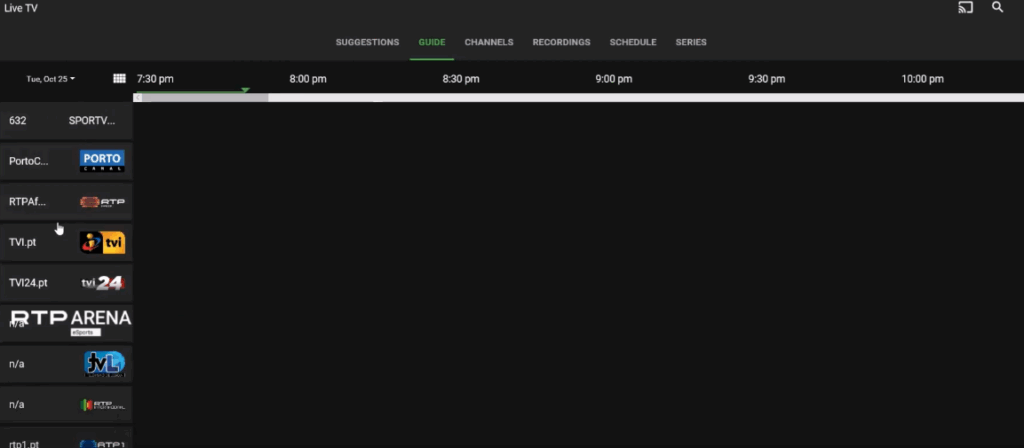
7. Map Channels to Guide
If using external guide data, Emby may prompt you to map channel names or numbers to the guide entries so EPG information lines up correctly
8. Access Live TV / Set Up DVR
Once configured:
- Go to your Live TV section in Emby
- Stream live channels
- Optionally configure DVR settings: recording folder, padding, guide days, etc.
Troubleshooting Tips
- “Error saving TV provider” ← Means Emby couldn’t reach the URL. Check your internet or try adjusting user-agent/referrer
- No channels show up ← Emby may struggle reaching the URL from your network. Confirm it’s accessible and the URL is correct
- EPG doesn’t load properly ← Many users use tools like xTeVe or m3u4u (with Dropbox integration) to pair a trimmed M3U and XMLTV guide feed




