
Whether you’re using Ubuntu, Linux Mint, or another Debian-based system, here’s a step-by-step guide to watch IPTV canada using open-source players.
1: Update Your System
Open the terminal and run:
sudo apt update && sudo apt upgrade
This ensures your system has the latest packages.

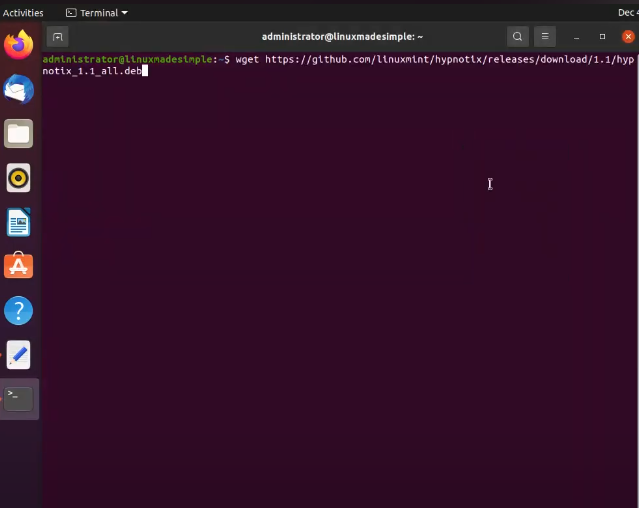



2: Choose an IPTV Player
Popular IPTV apps for Linux include:
- VLC Media Player (lightweight, supports M3U links)
- Kodi (full-featured media center)
- IPTVnator (modern open-source IPTV app for Linux)
You can install one or more depending on your preference.

3: Install VLC (Recommended for Beginners)
In terminal, run:
sudo apt install vlc
After installation:
- Open VLC
- Go to Media > Open Network Stream
- Paste your M3U playlist URL
- Click Play
4: Install IPTVnator (Modern UI with Playlist Support)
- Download the latest
.debfile from the official GitHub page - In terminal, navigate to your download directory and run:
sudo dpkg -i iptvnator*.deb
sudo apt --fix-broken install
- Launch IPTVnator from your apps menu
- Import your M3U link or Xtream Codes credentials
5: Optional – Install Kodi with IPTV Add-on
sudo apt install kodi
- Launch Kodi
- Go to Add-ons > My Add-ons > PVR Clients
- Enable PVR IPTV Simple Client
- Enter your M3U URL under settings
- Restart Kodi and enjoy Live TV via IPTV
Bonus Tips for Smooth IPTV on Linux
- Use Ethernet or a stable Wi-Fi connection.
- Clear cache in VLC or Kodi for better performance.
- Use a VPN for added privacy and to bypass geo-blocks.
- Schedule auto-launch with your IPTV app using startup scripts if desired.




