
1. Choose the Right MYTV Online App Version
- Z8/Z9/Z10 – Use MYTV Online 2
- Z11 – Use MYTV Online 3
2. Gather Info from Your IPTV Provider
Depending on the portal type they support (“MAC”, “XC”, or “M3U”), you’ll need:
- MAC-based (Stalker): MAC-ID (starting with 00:1A…) and a Portal URL.
- XC (Xtreme Codes): Portal URL plus username & password.
- M3U playlist: M3U URL and optional EPG/XML URL.
3. Locate Your MAC Address
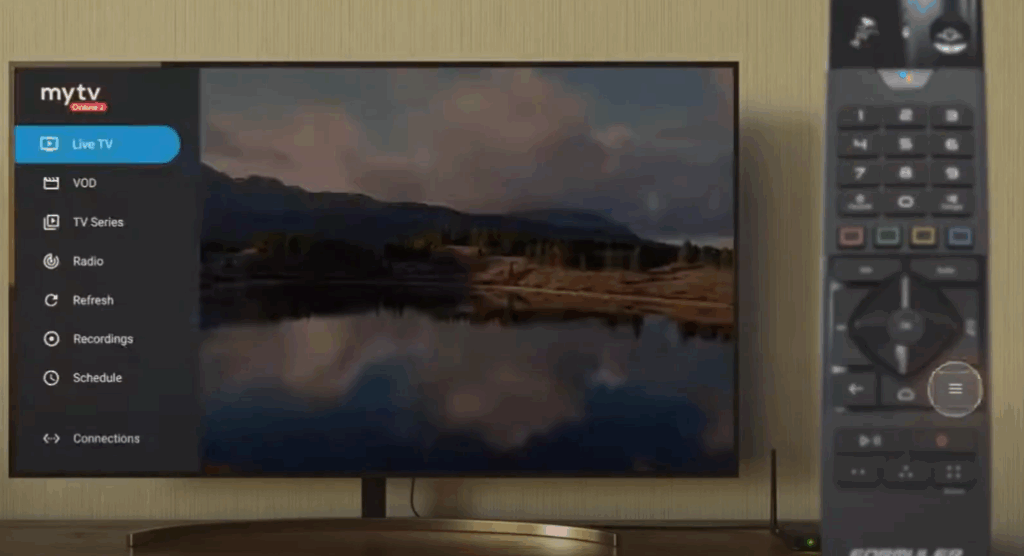
- Launch MYTV Online app.
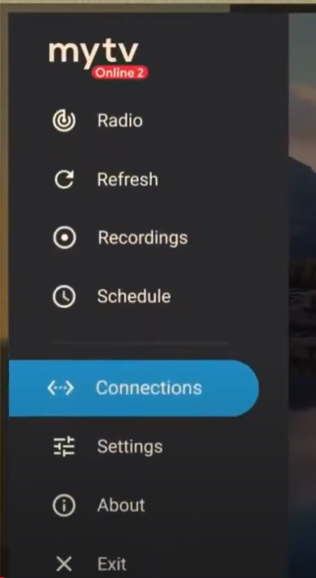
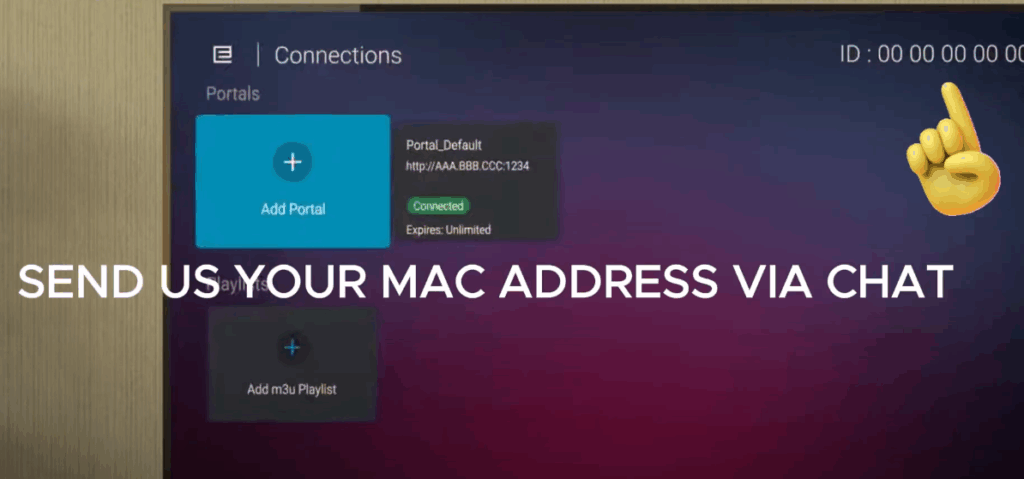
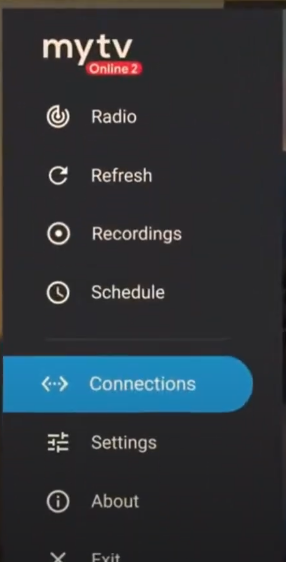
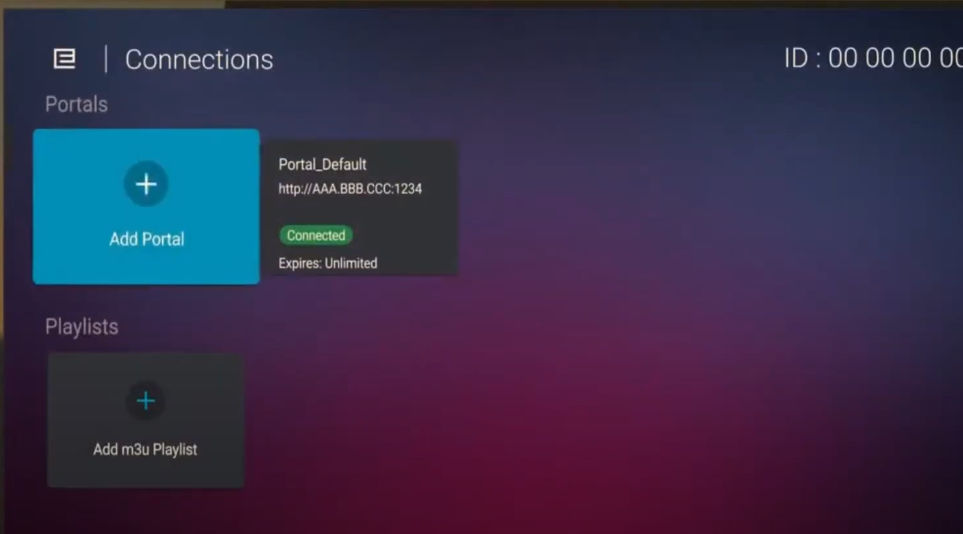
- Navigate to Portals (MOL2) or Content Manager → Source Manager (MOL3).
- Click Add Portal and reveal your MAC-ID (for provider registration).
4. Add and Configure the Portal or Playlist
A) MAC/XC Portal Method
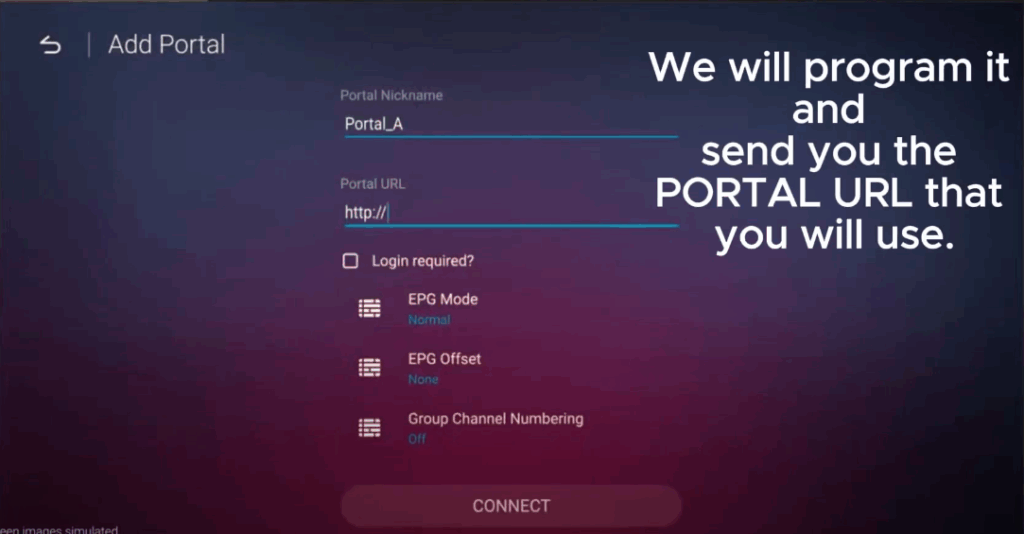
- Select Add Portal under Portals/Source Manager.
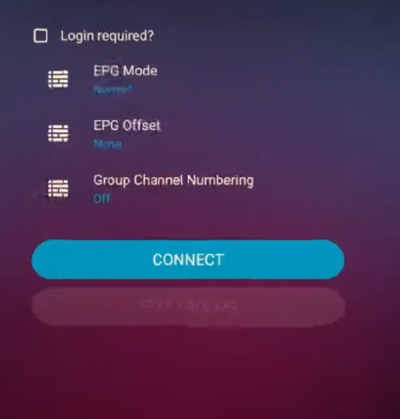
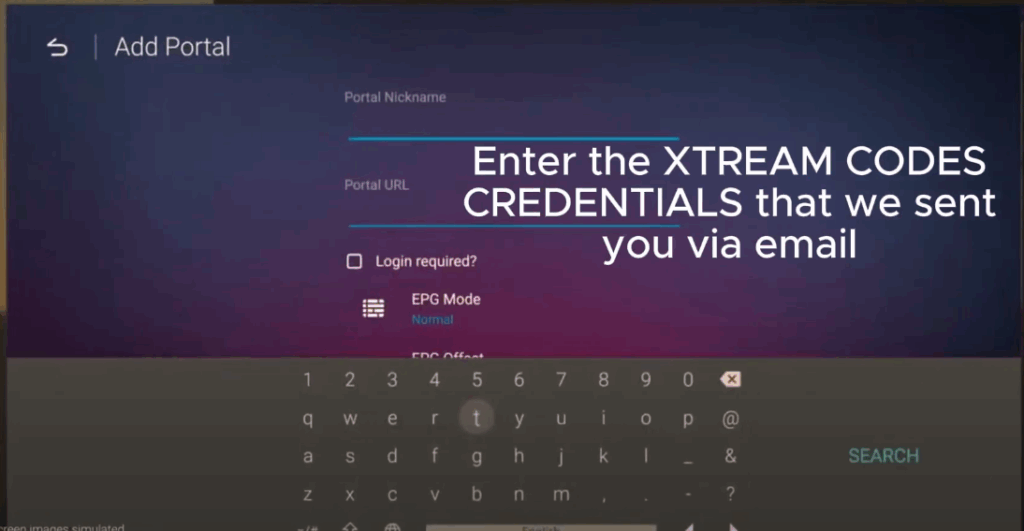
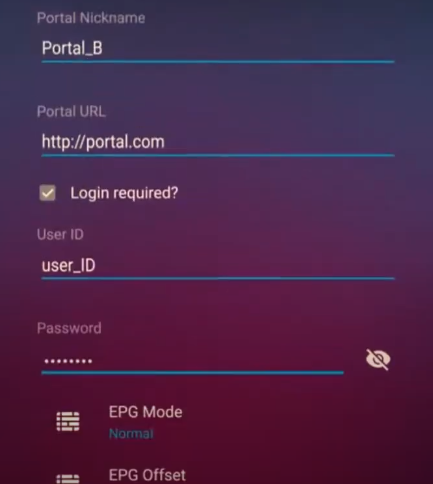
- Enter:
- Name (e.g., “Home IPTV”)
- MAC-ID (shown in the app; send this to your provider)
- Portal URL, with optional user/pass for XC type
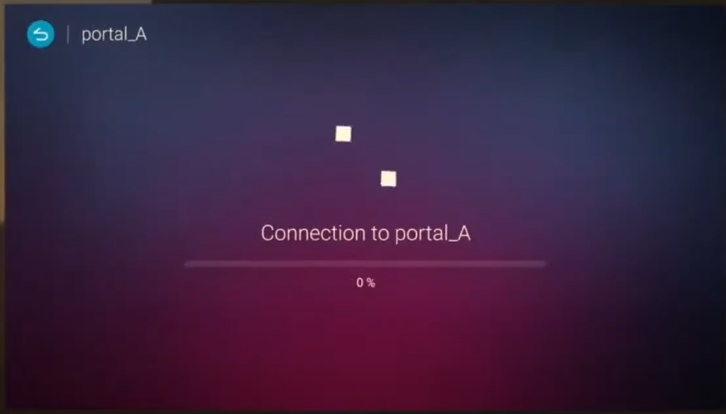
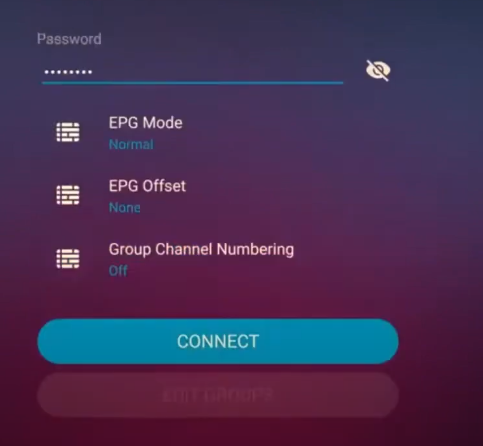
- Enable “Login required” if XC, then hit Connect.
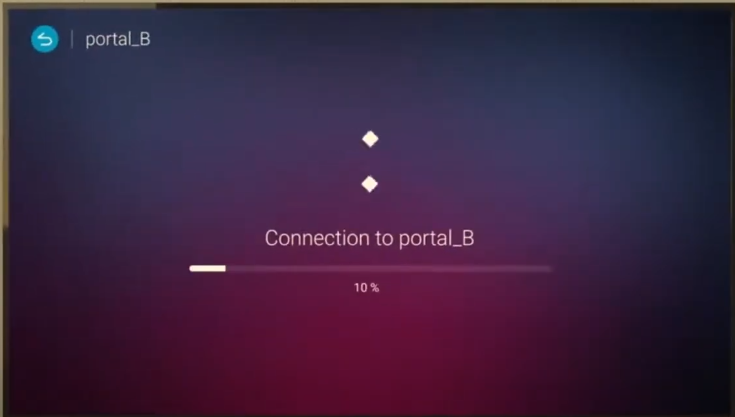
- After a short loading period, live channels appear.
B) M3U Playlist Method
- Select Add M3U Playlist (in both versions).
- Enter:
- Name (e.g., “IPTV List”)
- M3U URL (provider-supplied); EPG/VOD URLs usually auto-detect
- Tap Connect. Channels and EPG should populate quickly.
5. Access Your Channels
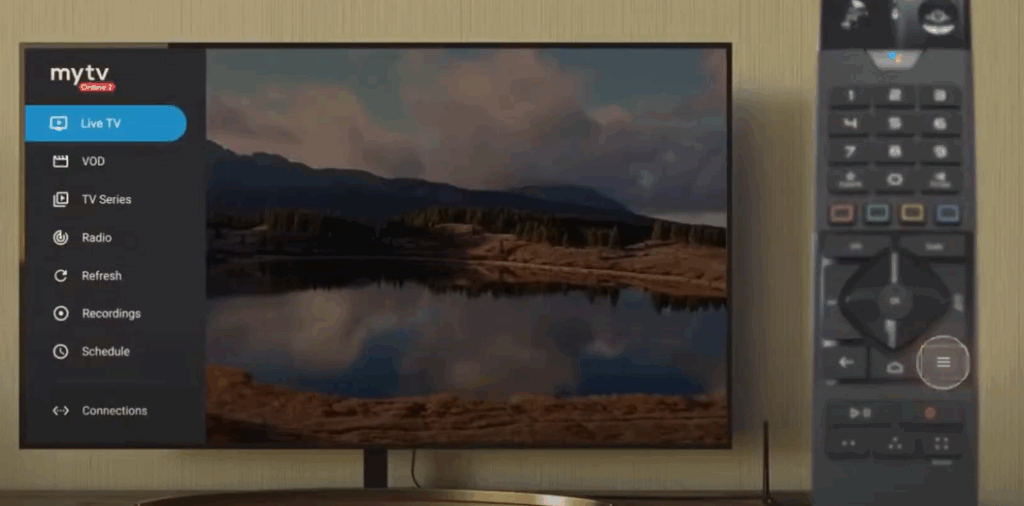
Navigate to My TV on the main screen. Your configured portal/playlist will load, showing live TV, EPG, VOD—as per your subscription.
6. Manage Multiple Portals (MYTV Online 3)
- Use Content Manager → Source Manager to enable or disable portals.
- After a firmware update (beta), the toggle appears next to each source.




