
1: Prepare Your Fire TV Cube
- Plug your Fire TV Cube into your TV and power it on.
- Connect to a stable Wi-Fi network.
- Make sure you’re signed in with your Amazon account.
- Go to Settings > My Fire TV > Developer Options and enable:
- ADB Debugging
- Apps from Unknown Sources
2: Install Downloader App
- From the Fire TV Home screen, select the Search icon (🔍).
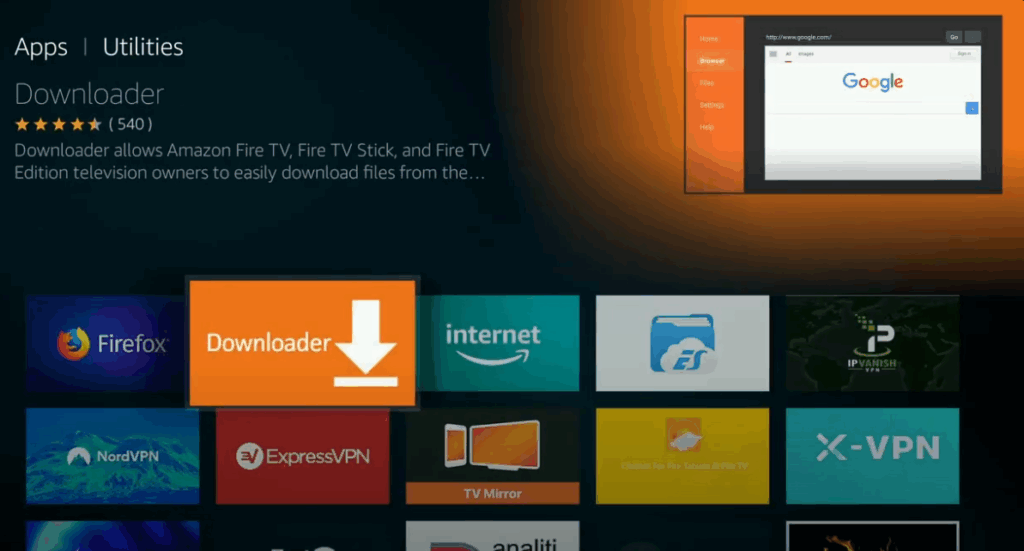
- Type and select “Downloader“.
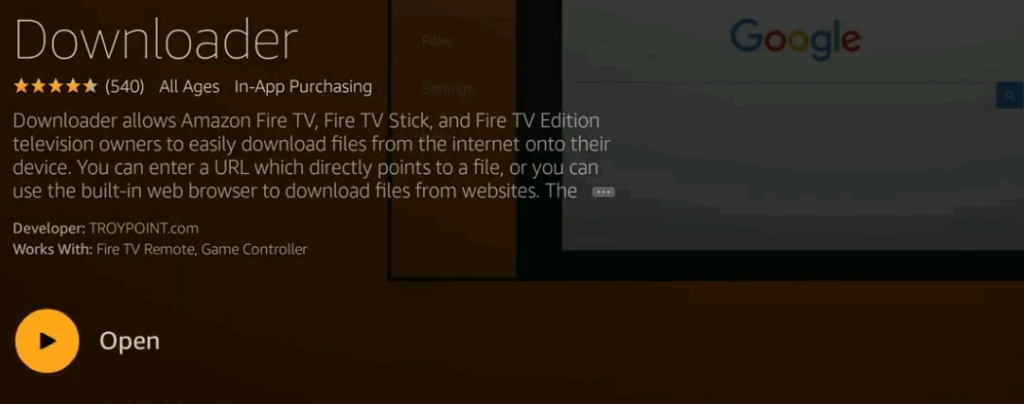
- Click Download and wait for it to install.
- Open Downloader and grant all permissions.
3: Download IPTV App (e.g., IPTV Smarters Pro or TiviMate)
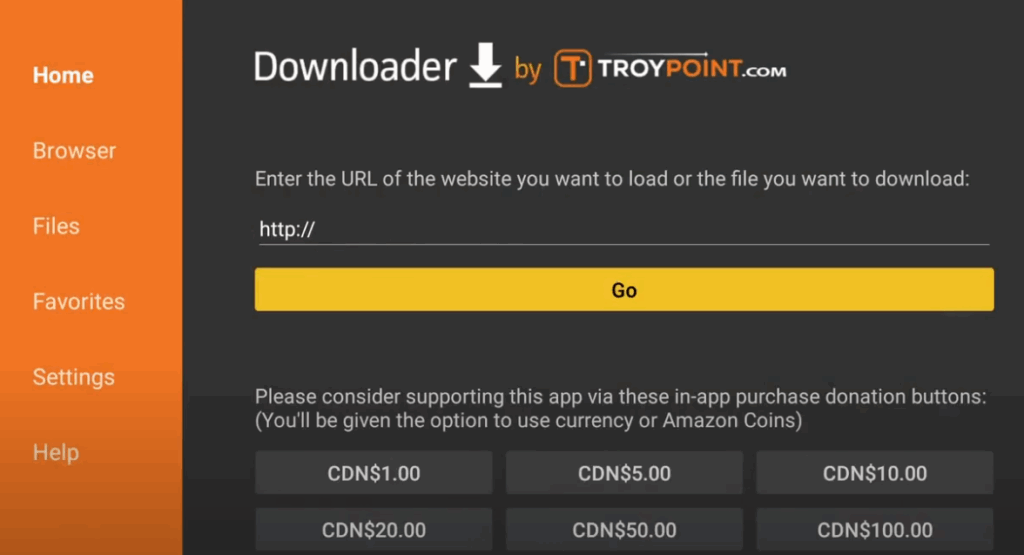
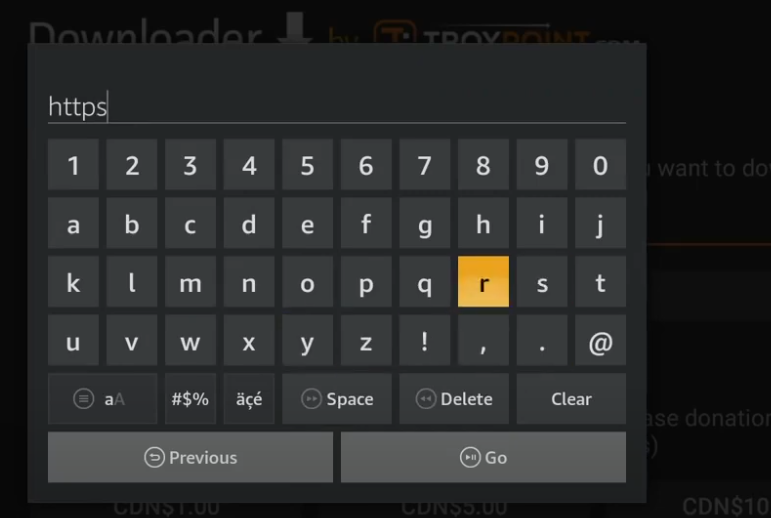
- In Downloader, enter the official APK URL or use a trusted link (e.g., for IPTV Smarters Pro:
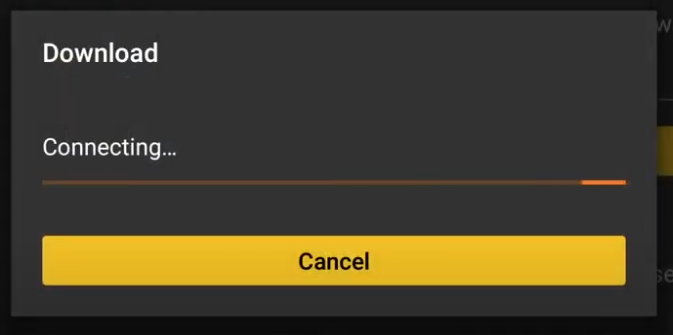
https://www.iptvsmarters.com/smarters.apk). - Press Go to begin the download.
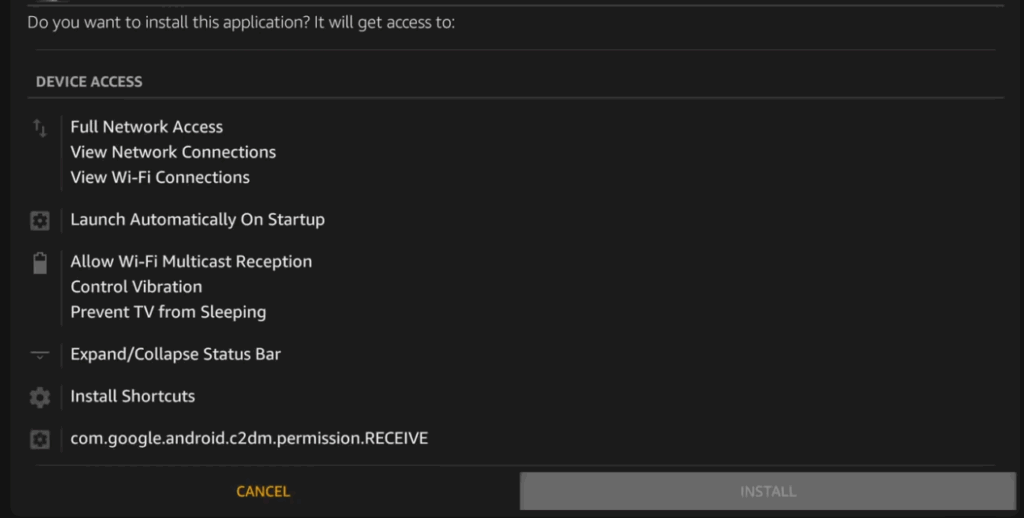
- Once downloaded, click Install.
- After installation, press Done, then Delete APK to save space.
4: Launch IPTV App and Enter Playlist Info
- Open the IPTV app from Your Apps & Channels.
- Accept the Terms and choose Load Your Playlist or File/URL.
- Enter your M3U URL, Xtream Codes API, or upload the playlist file.
- Add your account name (any label you want).
- Click Add User or Login.
5: Enjoy IPTV on Fire TV Cube
- Your channels, VODs, and EPG should load.
- Use your remote to navigate Live TV, Movies, and Series.
- For best performance, ensure:
- Your internet is at least 25 Mbps.
- You connect via Ethernet or 5 GHz Wi-Fi.
- You use a reliable IPTV provider.
Optional Tips for Better Streaming
- Use a VPN for privacy and ISP throttling avoidance.
- Clear cache regularly from Settings > Applications > Manage Installed Applications.
- Consider using TiviMate Premium for advanced features.




