
1. Obtain Your M3U Playlist
Request the M3U URL or M3U file from your IPTV provider. This playlist contains all your IPTV channels and is required for VLC setup.
2. Install or Open VLC Media Player
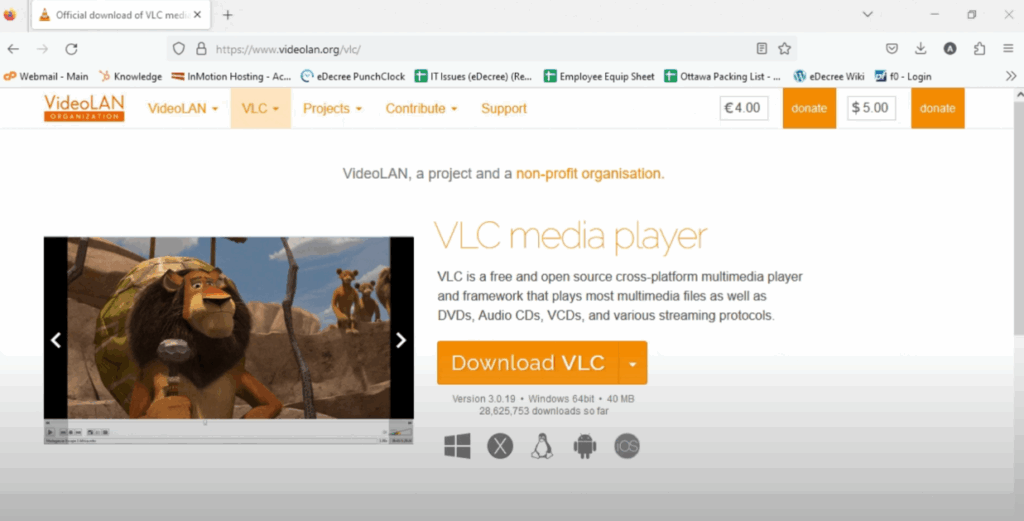
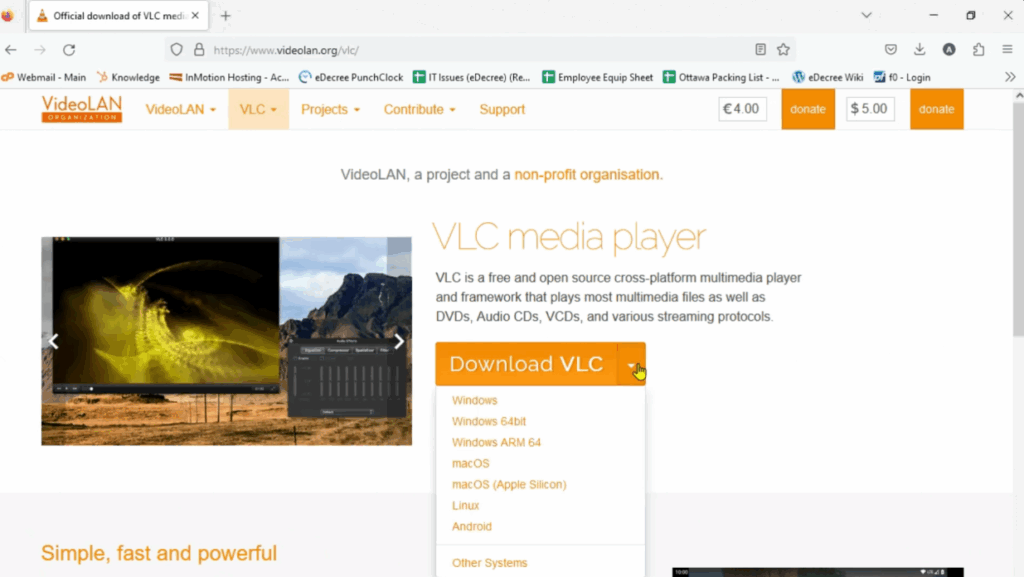
Make sure you have the latest version of Media Player installed. Download it from the official site if needed:
https://www.videolan.org/vlc
3. Open IPTV via Network Stream
- Launch VLC.
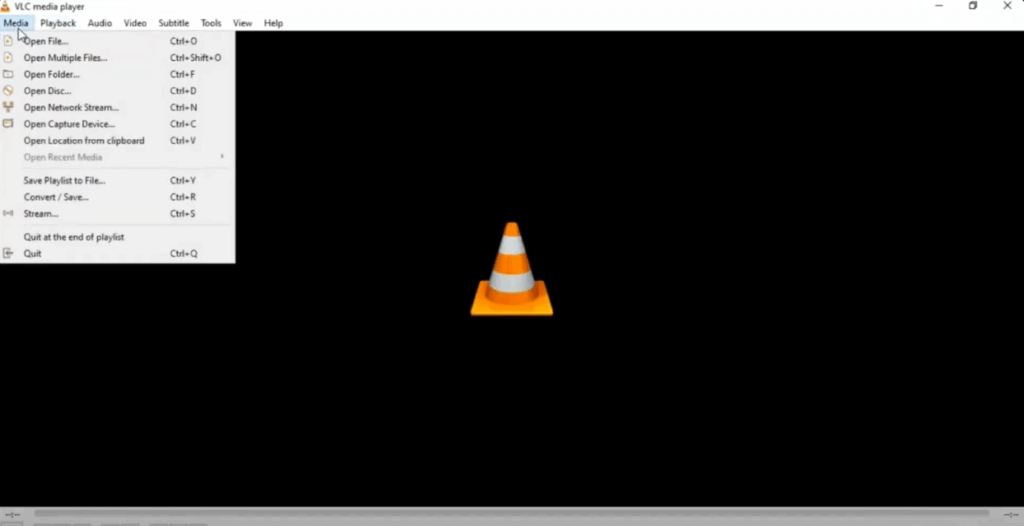
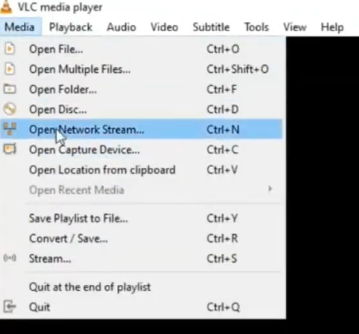
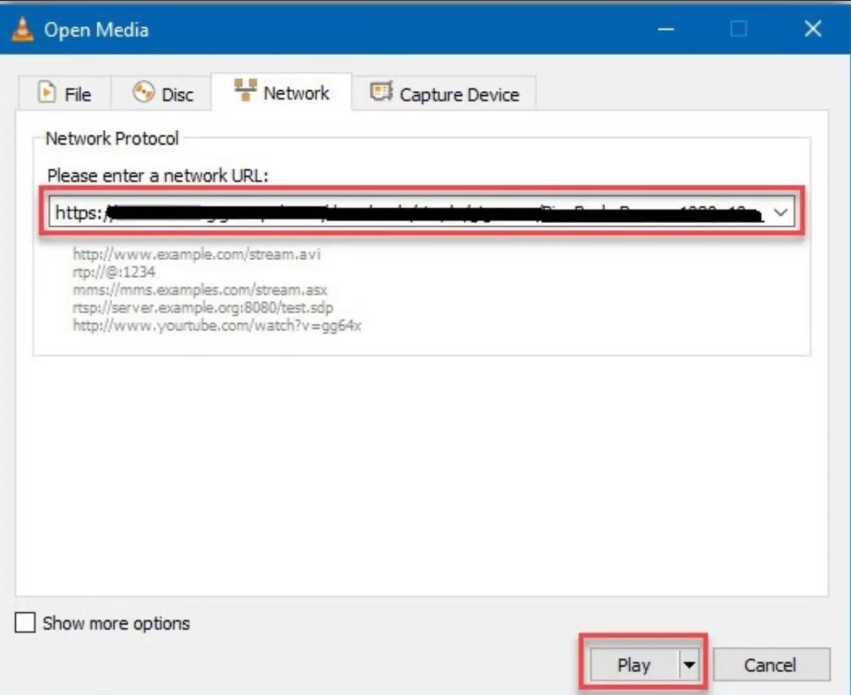
- Click on Media > Open Network Stream (or File > Open Network on macOS).
- Paste your IPTV M3U URL into the box.
- Click Play to start loading your channel list.
(Source: IPTV Trends Guide)
4. Show and Use the Playlist
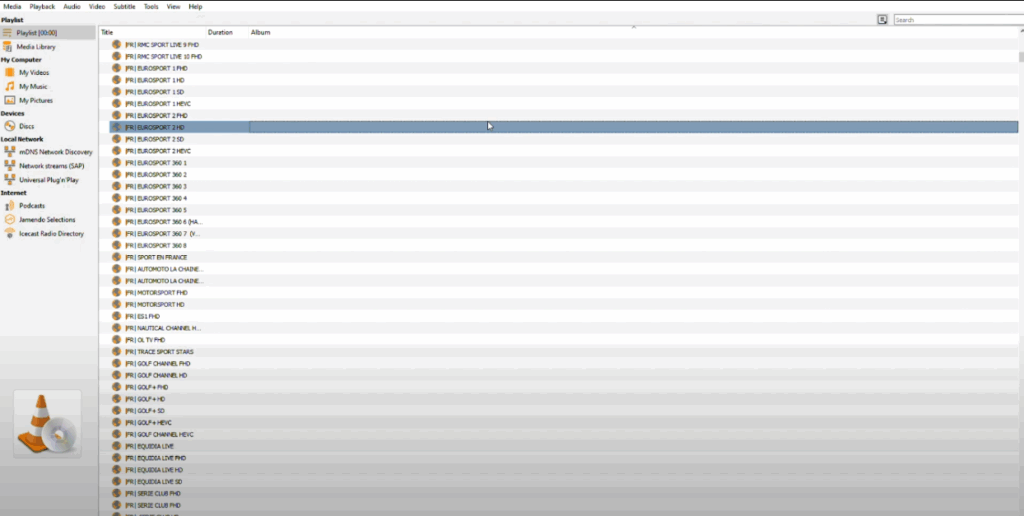
Once your stream loads:
- Open the playlist by pressing CTRL+L (Windows/Linux) or CMD+L (Mac).
- Browse your available channels and double-click on any to start watching.
(Source: IPTV Trends)
5. Use a Local M3U File (Alternative Method)
If you received a downloadable .m3u file:
- Go to Media > Open File.
- Select the M3U file.
- VLC will load and display the list of channels.
(Source: OnPattison IPTV Guide)
6. Improve Playback Performance
To reduce buffering and improve quality:
- Go to Tools > Preferences, then click All at the bottom left.
- Navigate to Input / Codecs.
- Increase the Network caching (ms) value (e.g., to 1000 or higher).
- Save and restart VLC.
(Source: IPTV Trends Optimization)
7. Recording and Extra Features
- To record a stream: go to View > Advanced Controls, then click Record while watching.
- VLC works on Windows, Mac, Linux, Android, and iOS, but desktop versions offer better playlist support.
(Source: IPTV Local Client Help)




