
1. Install TiviMate app
- Download and install the Downloader app on your Android TV or FireStick (if not already installed).
- Use Downloader to sideload the TiviMate APK from the URL provided (e.g., via the Downloader input field).

2. Run TiviMate & add your playlist
- Launch Tivi Mate.
- In the main interface, select Add playlist.
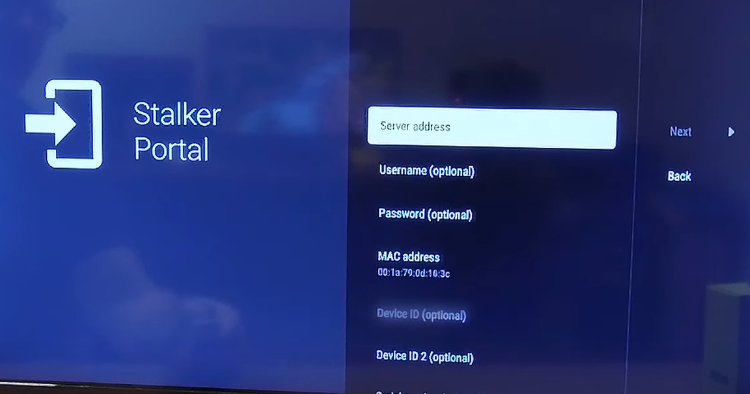
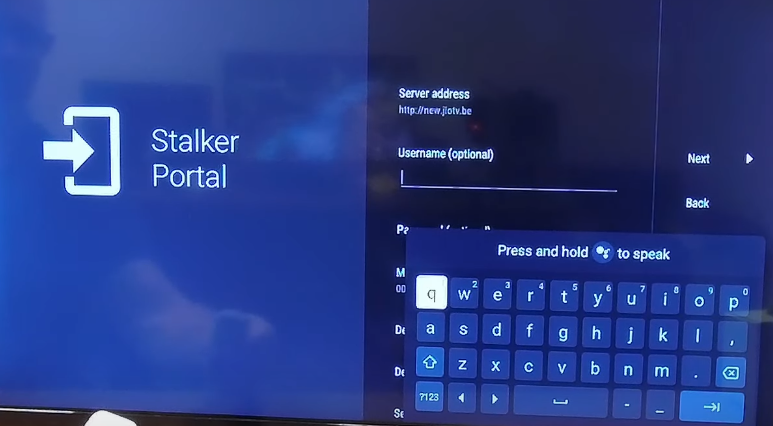
- Choose your playlist type—M3U link, Xtream Codes, or Stalker Portal—depending on your IPTV provider.
- Enter the playlist URL (M3U), or server URL + username + password (for Xtream/Stalker), then tap Next.
- Tivi Mate will fetch and display the total number of available channels/VOD. Adjust the playlist name if desired.
- Tap Next again, add the optional EPG URL (TV‑guide feed), then select Done.
- Review the remote navigation prompts and tap OK to finalize.



3. Use the TiviMate interface
- The app’s TV tab shows live channels sorted into categories (e.g., Sports, News). Navigate the channels using the on-screen menu.
- Access the Movies/VOD section for video-on-demand content.
- Head to Recordings (if enabled) to manage saved content.
4. Enable electronic program guide (EPG)
- Go to Settings → EPG.
- Enable the Default EPG source if not automatically activated.
5. Unlock premium features (optional)
- To get premium features (multi-playlist, recording, customize UI, catch-up, etc.), you need a TiviMate Premium subscription.
- Open Settings → Unlock Premium and follow steps to link your TiviMate Companion app (via Android device):
- In Tivi Mate on TV, select Unlock Premium → Account → Sign up, and note the details.
- On your phone/tablet, install TiviMate Companion, log in, select a plan (annual or lifetime), and complete purchase.
- Return to TV app, click Next to confirm activation.




