
Even though PlayStation consoles don’t support native IPTV apps, you can still enjoy IPTV Canada using the built-in web browser. Follow this step-by-step guide to stream directly from your IPTV provider’s online portal
1: Set Up Your Console
- Turn on your PS4 or PS5
- Connect to a stable Wi-Fi or Ethernet network
- Ensure your system software is up to date
2: Open the Web Browser
- On PS4: Go to the home screen and launch the Internet Browser
- On PS5: Open the browser via the Search Bar (type a URL like
https://google.com)
Tip: Add the browser to your quick access by bookmarking a URL.
3: Visit Your IPTV Provider’s Web Player
- In the browser’s address bar, type your IPTV provider’s web portal URL
- This link is usually sent by your provider after purchase
- Example:
https://portal.providername.com
4: Log In with Your IPTV Credentials
- Enter your Username and Password
- Some providers may also require a portal ID or token
- Press Login or Connect
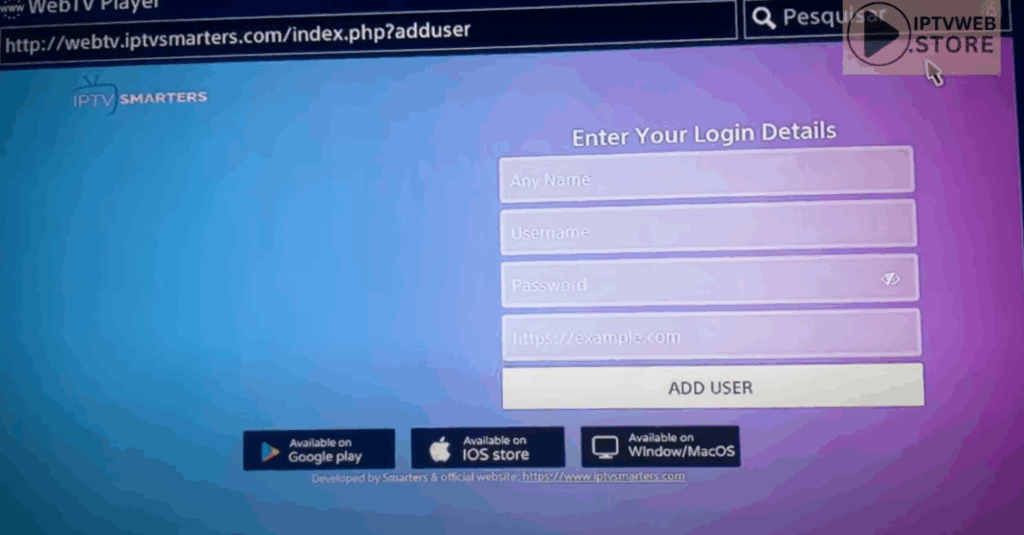
5: Access Your Channels
- Once logged in, wait for the interface to load
- Navigate using your controller through:
- Live TV
- Movies
- Series
- Catchup/EPG (if available)
Streaming begins right in the browser — no app download needed.
Tips for Smooth Streaming
- Use Ethernet instead of Wi-Fi for uninterrupted playback
- Bookmark your IPTV login page for faster future access
- Close other browser tabs or apps to improve speed
- Use full screen mode for better viewing experience
- If the portal lags, clear browser cache and reload
That’s it — your IPTV Canada subscription is now ready to stream on your PlayStation console. With just your controller and browser, you can enjoy full access to your IPTV content in high quality, right from your gaming system.




