
Your Xbox isn’t just for gaming — you can easily stream IPTV Canada using a simple and secure app available in the Microsoft Store. Follow this full setup guide to get started.
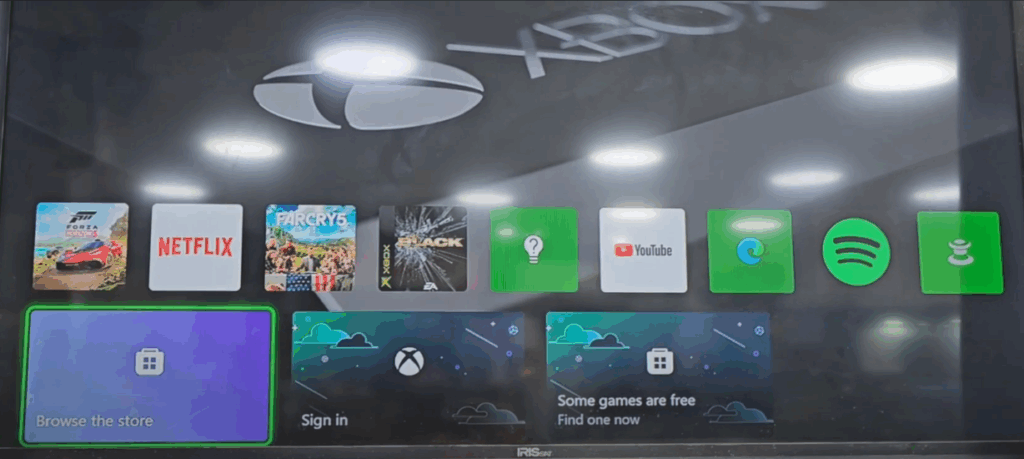
1: Set Up Your Xbox for IPTV
- Turn on your Xbox and connect it to the internet (Wi-Fi or Ethernet)
- Make sure your Microsoft account is signed in
- Navigate to the Home screen to begin
2: Open the Microsoft Store
- From the Home screen, scroll to Store
- Select Search and type:
MyIPTV Player - This app allows you to load M3U playlists from your IPTV provider
3: Download and Install MyIPTV Player
- Select MyIPTV Player from the results
- Press Get or Install
- Wait for the app to download and launch it
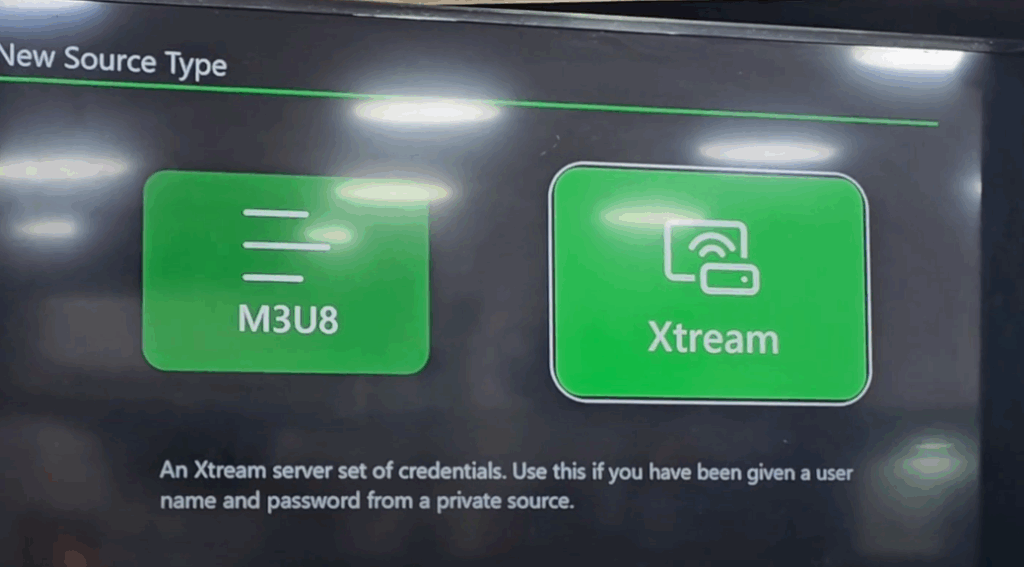
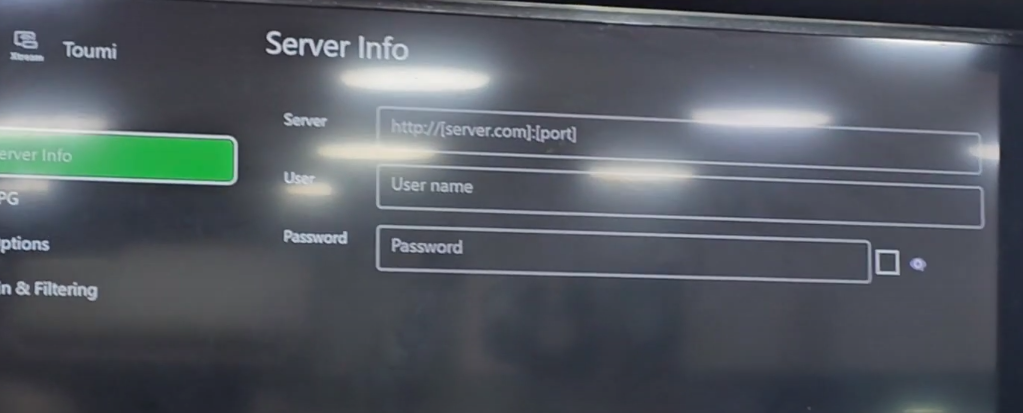
4: Add Your IPTV Playlist
- Open MyIPTV Player
- Go to Settings > Add New Playlist and EPG Source
- Under Remote Channels, enter:
- A Name (e.g., IPTV Canada)
- Your M3U URL (provided by your IPTV provider)
- Click Add and then Refresh
5: Enable the Playlist
- Go back to Settings > Select Playlist
- Choose the playlist you just added
- Make sure it’s enabled under Program Guide Settings
- Return to the main screen

6: Load and Watch IPTV Content
- Click on Live TV
- Your channel list will load
- Navigate to the available categories: Live TV, Movies, or Series
- Select a channel or show and start streaming
Tips for Smooth Streaming
- Use Ethernet for better performance during peak hours
- Close other apps and games if streaming slows down
- Update MyIPTV Player regularly from the Microsoft Store
- Restart the app or Xbox if you notice freezing
- Adjust buffering settings in the app’s advanced options if needed
That’s it — your IPTV Canada subscription is now ready to stream directly from your Xbox. Whether you’re watching sports, news, or your favorite series, you’ll get a great experience on your console.




