
The Xiaomi Mi Box S is an Android TV device that supports IPTV apps out of the box. Follow these simple steps to get your IPTV Canada subscription up and running.
1: Connect and Set Up Your Mi Box S
- Plug your Mi Box into your TV using an HDMI cable
- Connect the power adapter and turn the device on
- Choose your Wi-Fi network and connect
- Log in with your Google account to access the Play Store
2: Open the Google Play Store
- Navigate to the Apps section from the home screen
- Select and open the Google Play Store
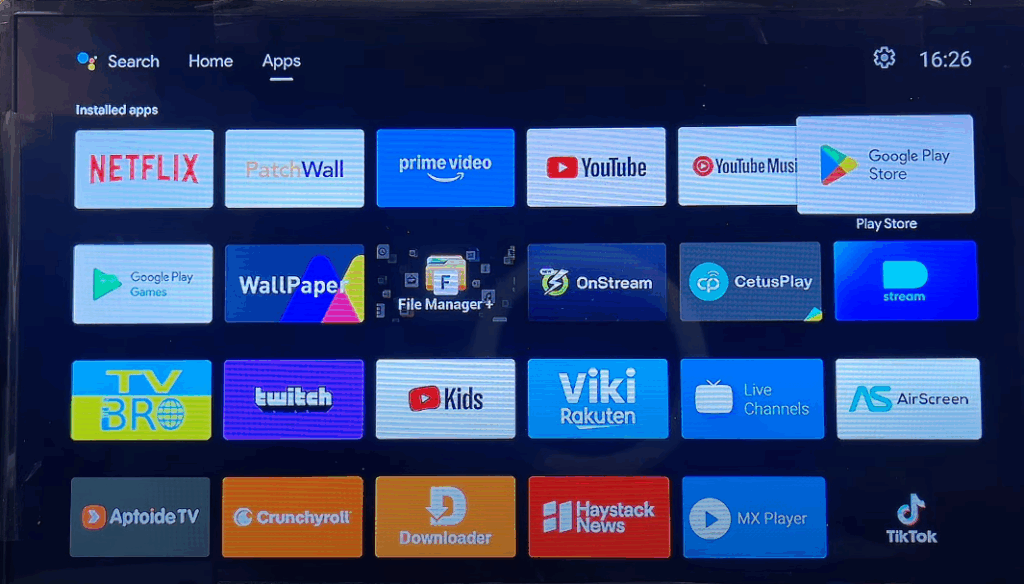
3: Search for a Compatible IPTV App
In the Play Store, search for and select one of the following apps:
- IPTV Smarters Pro
- TiviMate IPTV Player
- XCIPTV Player
All of these apps support both M3U and Xtream Codes formats.
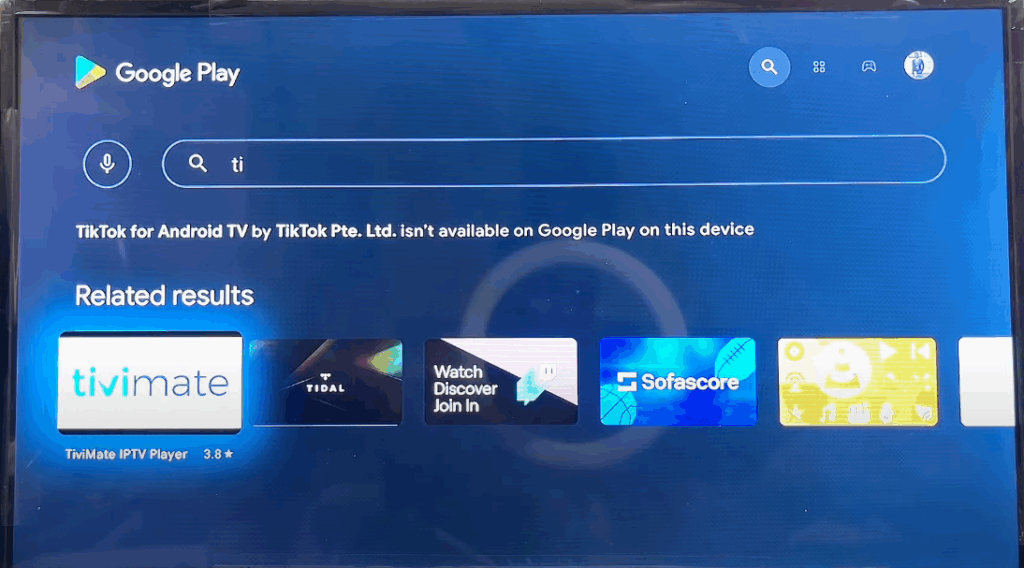
4: Install the IPTV App
- Click on the app you prefer
- Press Install
- Once installed, click Open to launch the app
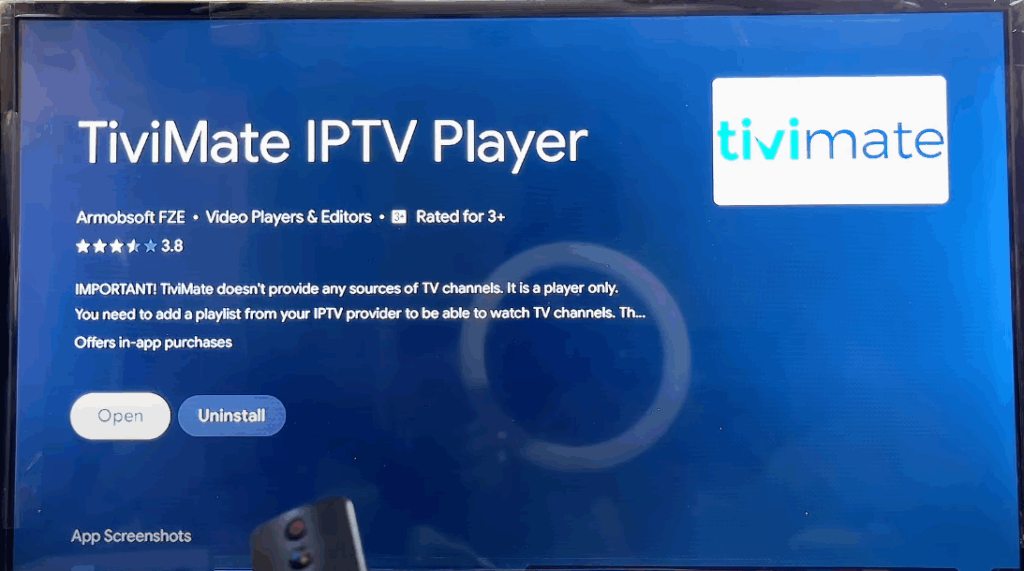
5: Accept Permissions
- When the app asks for permission to access files or the internet, press Allow
- This will enable the app to load playlists and stream video properly
6: Log In with Your IPTV Canada Subscription
Use the Xtream Codes API login method for a smooth experience:
- Enter Any Name (e.g., IPTV Canada)
- Portal URL from your provider
- Username
- Password
Then tap Add User or Login.
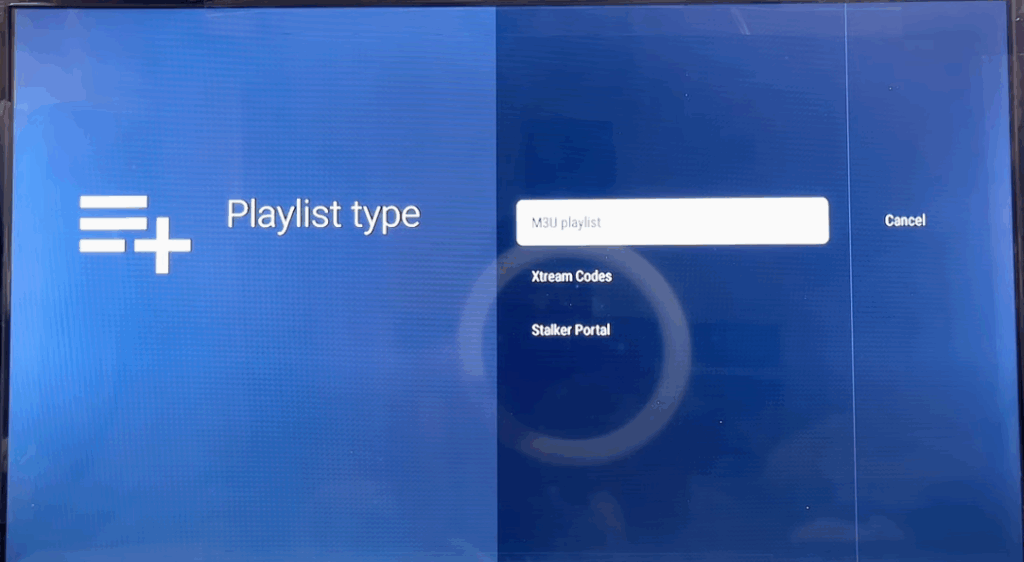
7: Start Watching!
- Channels and categories will load in a few seconds
- Navigate to Live TV, Movies, Series, or EPG
- Select what you want to watch and enjoy seamless streaming
Tips for Smooth Streaming
- Connect via Ethernet using a USB-to-Ethernet adapter for better stability
- Restart the app if channels don’t load properly
- Keep the IPTV app updated via the Play Store
- Clear cache from app settings if playback is slow
- Use TiviMate Premium if you want advanced features like favorites, EPG, and multi-screen
You’re all set! Your IPTV Canada subscription is now active on your Xiaomi Mi Box S, giving you access to live channels, movies, series, and more with a premium viewing experience.




